Home | Looking for something? Sign In | New here? Sign Up | Log out

Tuesday, 29 November 2011


4 CLICK TWITTER INSTALLER.


FIRST CLICK : Click the button below to start the installation process :


This is the popup window you will see :


SECOND CLICK : Fill in your Twitter Username instead of 'YourID' , customize title as you like instead of 'My Tweets' and type in the number of tweets you want shown instead of 'TweetNumber'. Then click Customize button.


THIRD CLICK : On clicking Customize button the 'Add Widget to My Blog' button will get activated. Click it. You will get the 'Add Page Element' window. See Picture below :


FOURTH CLICK : In the Add Page Element window select the blog you wish to add the gadget to (if you have multiple blogs in one account). Then type in a title "My Tweets" for the gadget. Lastly click 'Add Widget' button. The Page Elements subtab of Layout tab will open with the message that the widget has been added to the blog.


You can use this installer to add anyone else's tweets also. Just fill their Username instead of yours. The twitter gadget will adapt the styling of your blog. Enjoy

Add Google Calendar with Google Web Elements.


Add Google Calendar with Google Web Elements.

New Visitor? Like what you read? Then please subscribe to my Blog Feed or sign up for Free Email Updates. Thanks for Visiting!
Here is an easy way to add Google Calendar to your blog using Google Web Elements.


As shown above you can add it in a post or in a HTML gadget in the sidebar. You can also choose the Agenda view instead of the Monthly view shown above.


With Google Web Elements you can show CalendarConversation (Comments Gadget from Google Friend Connect), Custom SearchMap (Google Maps), NewsPresentationsSpreadsheets and YouTube News at present and more will be added soon. They are all built by Google so no worries about third party hacks


You can also earn money with the The Custom Search element which displays Ads. by Google and you can choose to share in the revenue by associating your AdSense publisher ID..........................


ADD GOOGLE CALENDAR WEB ELEMENT


To add the Google Calendar Web Element follow these steps :

1. Login at Google Calendar.

2. Click the down arrow next to calendar name in sidebar.

3. Select 'Share This Calendar' from drop down menu.

4. In right hand pane click the 'Calendar Details' link/tab at the top.

5. Scroll down and click the orange XML button under Calendar Address.

6. Copy the link in the popup window.

7. Go to Google Web Elements.

8. Click Calendar link in sidebar.

9. Paste your calendar address copied in 6. above in the Calendar Address text box.

10. Customize options : Choose Monthly or Agenda view and size. Choose a width smaller than width of your posts column or you will have to increase blog width.

11. Copy the code given below and paste it in Edit Html tab of Post Editor and publish post or paste in a HTML gadget in sidebar.


Google Map with Markers in Blog.


Google Map with Markers in Blog.


In above picture you can see a Google Map with Markers in my test blog. Here are the steps to put such a map in your blog......................


STEP 1. Get a Google API key for your blog.

In the first step you have to generate a Google API key for your blog here.Put a check in "I have read and agree with the terms and conditions (printable version)" box by clicking it. Paste your blogspot URL in the text box and click Generate API Key button. Copy down the key generated.


STEP 2. Modify the Template Code.


Login at Blogger.com

Click Layout link under Blog Title on Dashboard.

Click Edit HTML subtab of Layout tab.

Scroll down in Template Code box and change :

<body>

TO :

<body onload='initialize()' onunload='GUnload()'>

Save Template.


STEP 3. ADD HTML GADGET in sidebar.

Login at Blogger.com

Click Layout link on Dashboard under blog title.

Click Add Gadget link on Page Elements subtab of Layout tab.

In popup window scroll down and click HTML/Javascript Gadget.

Copy the code below and paste it in Contents window of the HTML gadget


<script src="http://maps.google.com/maps?file=api&v=2&key=PASTE_YOUR_GOOGLE_API_KEY_HERE
type="text/javascript"></script>


<script type="text/javascript">

function initialize() {
if (GBrowserIsCompatible()) {
var map = new GMap2(document.getElementById("map_canvas"));
map.setCenter(new GLatLng(37.4419, -122.1419), 13);

// Add 10 markers to the map at random locations
var bounds = map.getBounds();
var southWest = bounds.getSouthWest();
var northEast = bounds.getNorthEast();
var lngSpan = northEast.lng() - southWest.lng();
var latSpan = northEast.lat() - southWest.lat();
for (var i = 0; i < 10; i++) {
var latlng = new GLatLng(southWest.lat() + latSpan * Math.random(),
southWest.lng() + lngSpan * Math.random());
map.addOverlay(new GMarker(latlng));
}
}
}

</script>

<div id="map_canvas" style="width: 500px; height: 300px"></div>


Customize the above code by :

1. Paste in the Google API key obtained in Step 1 where it says "PASTE_YOUR_GOOGLE_API_KEY_HERE".


2. Put in the latitude and longitude of your map center in this line :

map.setCenter(new GLatLng(37.4419, -122.1419), 13);

3. The above code will add 10 markers at random locations. For more information checkout the Google Maps documentation.

Save Gadget.


ADD MEMBERS GADGET TO BLOG


ADD MEMBERS GADGET TO BLOG


First step is to sign up at Google Friend Connect. Then get the code for the Members Gadget. It will look something like this :

<!-- Include the Google Friend Connect javascript library. -->
<script type="text/javascript" src="http://www.google.com/friendconnect/script/friendconnect.js"></script>
<!-- Define the div tag where the gadget will be inserted. -->
<div id="div-1236939855410" style="width:282px;border:1px solid #cccccc;"></div>
<!-- Render the gadget into a div. -->
<script type="text/javascript">
var skin = {};
skin['HEIGHT'] = '385';
skin['BORDER_COLOR'] = '#cccccc';
skin['ENDCAP_BG_COLOR'] = '#e0ecff';
skin['ENDCAP_TEXT_COLOR'] = '#333333';
skin['ENDCAP_LINK_COLOR'] = '#0000cc';
skin['ALTERNATE_BG_COLOR'] = '#ffffff';
skin['CONTENT_BG_COLOR'] = '#ffffff';
skin['CONTENT_LINK_COLOR'] = '#0000cc';
skin['CONTENT_TEXT_COLOR'] = '#333333';
skin['CONTENT_SECONDARY_LINK_COLOR'] = '#7777cc';
skin['CONTENT_SECONDARY_TEXT_COLOR'] = '#666666';
skin['CONTENT_HEADLINE_COLOR'] = '#333333';
google.friendconnect.container.setParentUrl('/' /* location of rpc_relay.html and canvas.html */);
google.friendconnect.container.renderMembersGadget(
 { id: 'div-XXXXXXXXXXXXX',
   site: 'XXXXXXXXXXXXXXXXXXXXXXXX' },
  skin);
</script>


In above code change :

style="width:282px;

to 282px to 100% and also change the hex colors :

skin['BORDER_COLOR'] = '#cccccc';
skin['ENDCAP_BG_COLOR'] = '#e0ecff';
skin['ENDCAP_TEXT_COLOR'] = '#333333';
skin['ENDCAP_LINK_COLOR'] = '#0000cc';
skin['ALTERNATE_BG_COLOR'] = '#ffffff';
to match your site design. Change the height of the gadget  by modifying '385' in :


skin['HEIGHT'] = '385';

Then save the gadget.


GADGET APPEARS ON SPECIFIC PAGE ONLY


We do not want the gadget to appear on every page. We want it to appear only on the 'Blog Members' page. For this we use the power of conditional tags. The first step is to get the permalink of the Blog Members post published in Step 1 above. Look in the Blog Archives gadget as the post was backdated. Click the post link to open the post page. Copy the link from the address bar. It looks like this in my example :

http://www.blogdoctor.me/2007/03/blog-members.html


Then we have to modify the widget code. Login at Blogge.com and click Layouts link on dashboard. Then click Edit Html subtab of Layout tab. Click on Expand Widgets Template checkbox at top of Template Code box. Wait for page to refresh. Scroll down to the code for the Blog Members gadget. It will look like something this :

<b:widget id='HTML28' locked='false' title='BLOG MEMBERS' type='HTML'>
<b:includable id='main'>
<b:if cond='data:blog.url == "http://www.blogdoctor.me/2007/03/blog-members.html"'>
  <!-- only display title if it's non-empty -->
  <b:if cond='data:title != &quot;&quot;'>
    <h2 class='title'><data:title/></h2>
  </b:if>
  <div class='widget-content'>
    <data:content/>
  </div>
<b:include name='quickedit'/>
</b:if>
</b:includable>
</b:widget>


Put in the two lines in bold as shown above. In the first line :


<b:if cond='data:blog.url == "http://www.blogdoctor.me/2007/03/blog-members.html"'>

Put the permalink of your Blog Members post obtained in Step 1. Do not forget to put in the second line :

</b:if>

in exactly same place in the widget code. Save Template. As you can see the Members gadget showing all the present members appears only on this post.

How to put Adsense Link unit in your Header.


How to put Adsense Link unit in your Header.

To put an Adsense Link Unit Ad. in the header..........

Log in to your Dashboard. Click on your 'Layout' link under your blog name. This takes you to Page Elements under the Template tab. Click on Edit Html. Scroll down in Edit Template field till you come to :

<div id='header-wrapper'>
<b:section class='header' id='header' maxwidgets='2' preferred='yes' showaddelement='yes'>

Change the second line to be the same as the second and third lines above.
Save Template.
Go to Page Elements subtab.
Now you will see in the Header Section an 'Add Page Element' link.
Click on the link and in the popup window choose Html/Javascript.
Paste your Adsense 728 by 15 Ad. Javascript code in Content field.
Save. The Ad. unit is placed above the Title unit.
Click and drag this to below the Title unit.
Save.
View blog.

Add Content with RSS Feeds.


Add Content with RSS Feeds.

To Add Content to your blog with RSS feeds.........

First find the RSS Feed Icon. On many sites it is shown as "RSS" or "About Feeds". The icons are shown alongside. 
Right click any one of these and select 'Copy Link Location'. Now you have to convert the feed into Javascript code. There are many such convertors online which you can find simply by searching Google. One such convertor is located at : http://itde.vccs.edu/rss2js/build.php. Go there and paste your feed url into the text box under 'Enter the web address of the RSS Feed'. Choose among the various options for the feed. Whether you want the title to be displayed etc... Then click 'Preview' to see if the feed is being generated. If the feed url is correct it will show items and content from the web page where you took the feed url from. If you are satisfied click 'Generate Javascript'. Javascript code is generated along with non javascript code which displays the feed on browsers without Javascript. Go back to your beta blog. Login to the Dashboard and click on Layouts under the name of your blog you want to add the feed to. The Page Elements page opens. Click on Add Page Element in the sidebar and choose HTML/Javascript in the popup window which opens. Paste the Javascript code in the content box and Save Changes. You can also add this to a Page Element in the Main Column of postings but then your feed will appear on all your posts. If you add it in the sidebar it will only appear once on the page.

WARNING :
1) Before taking content from other websites be sure to resd their Terms of Use for feeds. 2)You can fill your webpage with feeds but the Adsense bots are not able to read the content generated by them, so it is ineffective with Adsense. 3) You can use the Feed widget already present in the choices in the popup window which opens when you click on 'Add Page Element' in Page Elements page. However it will deliver only a maximum of five posts and titles whereas you can configure the feed in the above process to deliver all the posts.


You can also add a feed of your blog to your sidebar so that it shows all the posts titles. The URL of your beta blog's feed is :

http://yourblogname.blogspot.com/feeds/posts/full

Instead of 'yourblogname' type the name of your blog.


You can also add RECENT COMMENTS to the sidebar by using comment feeds URL which are

http://yourblogname.blogspot.com/feeds/comments/TYPE

Instead of 'yourblogname' type the name of your blog. Instead of TYPE use summary or full.

Make Money with Inline Adsense for Bloggers!


Make Money with Inline Adsense for Bloggers!

Blogger has now made it possible for you to make even more money! You can now add Inline Adsense advertisements between your blog posts.


As we have seen before you can add Adsense Ads. by selecting the Adsense Widget when adding widgets to your blog. If you want to include channel information also copy and paste the Adsense code into a Html Page Element.


Now with this method (Inside AdSense: Get inline) you can add Adsense Ads. between your blog posts inline with them. To do this login at Blogger.com and click on 'Layouts' link for your blog. In the Page Elements tab click on 'Edit' link in the Blog Posts widget. Scroll down in the popup window and check the box next to Show Ads Between Posts. You can then select how often you'd like your ads to appear, such as once after every post or once after every other post.


It also allows you to Customize your Adsense Ads. After customizing save the changes. At the moment search boxes and referral units cannot be added in this fashion. Since the optimum method is to have most of your Ads. above 'the fold' ( which is the viewable area of the screen when you open a site without having to scroll down ) use the Expandable Summaries hack to show only a summary of your posts on the Main Page with a 'Read More' link to the full post.


Using this method your posts on the Main Page will only contain a sentence or two and thus more posts and Adsense will be seen above the fold.

How to Add Widgets to your blog.


How to Add Widgets to your blog.

UPDATE : Blogger has now replaced the "Add Page Element" link with the "Add Gadget" link. Clicking on this link will bring up the "Add a Gadget" popup window. All the original Blogger widgets are listed under the Basics subtab in this popup window.

Blogger widgets are now called as Blogger Gadgets. The rest are Google Gadgets which have now been integrated into the Blogger Layout----->Page Elements tab.

To add widgets/gadgets to your blog ...........


Login to your Dashboard and click on Layout under your Blog name. This brings up the Page Elements page under the Template tab.

IMPORTANT : PAGE ELEMENTS ARE ONLY AVAILABLE IF YOU ARE IN BETA BLOGGER WITH A BETA TEMPLATE AND NOT ON FTP.
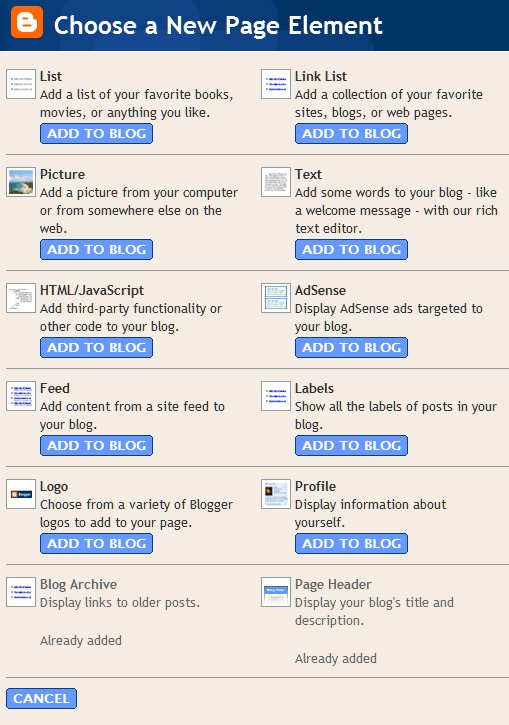
A Page Element is the other name for a Widget in Beta Blogger. Page Element are contained within Sections. The four Sections of your Blog are : Header, RightSidebar, LeftSidebar, Main(Blog Posts) and Footer. Click on Add Page Element link in any Section of the Layout. This opens the Choose A New Page Element window. Here are listed the types of Page Elements :

  1. List. Add a list of your favorite books, movies, or anything you like.
  2. Link List. Add a collection of your favorite sites, blogs, or web pages.
  3. Picture. Add a picture from your computer or from somewhere else on the web.
  4. Text. Add some words to your blog - like a welcome message - with our rich text editor.
  5. HTML/Javascript. Add third-party functionality or other code to your blog. You can add any Javascript here. Javascript need not be written for beta blogger specifically. To search for Javascripts just Google for them and then copy paste here.
  6. Adsense. Display AdSense ads targeted to your blog.
  7. Feed. Add content from a site feed to your blog.
  8. Labels. Show all the labels of posts in your blog.
  9. Logo. Choose from a variety of Blogger logos to add to your page.
  10. Profile. Display information about yourself.
  11. Blog Archive. Display links to older posts.
  12. Page Header. Display your blog's title and description.


Choose the type of Page Element you want and enter the data you want it to carry. Then Save Changes and View Blog.

To Edit the Page Element after adding it click on the Edit link in that section in Page Elemnts tab.
NOTE : PAGE ELEMENTS ARE REFERRED TO AS WIDGETS INTHE TEMPLATE CODE.
This will open a window to give access to edit options of each Page Element. For example if you click on Edit in Blog Posts section you will see the following window :


Here you can choose whether to show your Labels below your posts and other options. In the same way you can access other Page Elements for editing. You can also rearrange Page elements from this page by drag-and-drop method. To do this click on the element you want to move hold the click, drag it to new position and drop it (release click) there. See image below :


You can also add third party Page Elements from other sites.
CONFUSED ABOUT WHICH PAGE ELEMENT TO CHOOSE? THEN SELECT THE HTML/JAVASCRIPT OPTION.
So if you're on another site and enounter a button that says [+Blogger] or [Add to Your Blog] click on such a button, you should be prompted to log in to Blogger (if you aren't already logged in) and then you can select one of your blogs. You'll also see the title, content and template for the new page element, which you can edit if you want. A logo and "more info" link may also be present to tell you more about where this page element comes from, who created it, and what it does.

By clicking the [Add Page Element] button on this screen, you will be adding code to your blog. So it's important to make sure you either trust the source of this code, or have reviewed it to make sure it's something you're willing to have on your blog.

Once you've added the page element, it will appear on the Template | Page Elements tab for your blog, where you can edit, move, or delete it, just like the other parts of your page.


Add A Shoutbox To Blog

 
Where you can get a shoutbox? there is very much site provide this service. One of them ishttp://www.shoutmix.com. At this site you can get a shoutbox for free (basic account). This is the steps for get a shoutbox at shoutmix : 

  1. Please visit http://www.shoutmix.com.


  2. Before you must register, please click "CREAT YOUR SHOUTBOX NOW", or you can click "SIGN UP" at upper tab.


  3. If you are has registered at shoutmix, please login with your ID.


  4. At the column with title Style, click appearance.


  5. Then click pull down menu beside Load From Preset for setting your shoutbox, please SELECT which you want. If it is done, don't forget to click Save Setting.


  6. To get HTML code for your shoutbox, please click "Use Shoutbox


  7. Click at "Place Shoutbox on WEBPAGE, write the width and hight you want.


  8. Copy all of the HTML code at text area below of "Generated Codes, paste at notpad and then save to your computer.


  9. Click "Log out" and then close.


  10. Done. now you have a shoutbox code for add to your blog.

Now you can add your shoutbox code to your blog, please following the steps : 

  1. Login to blogger with your ID.
  2. After entering the dasboard page , click Layout. Please saw the picture :
  3. layout
  4. Click at Page Element tab. See the picture below :
  5. page element
  6. Click at Add a Page element.
  7. After emerging pop up window , Klik add to blog button for the things HTMl/java script See the picture following :
  8. javascript
  9. Open your Shoutbox code, copy and then paste into available column.


  10. Click   save changes   


  11. Done. Please see the result.

Now you have a Shoutbox at your blog.

Make A Table Of Content


Make A Table Of Content

Do you like to read the book? your answer surely will immeasurable, there is to answer to like and there is also to answer don't like. But I sure you have read a book. In a book is be one named by table of contents, with table of contents will make the reader the book easy to find the parts the content of a book wishing in reading. The question possibly emerge is what is his relation between books with blog? there is, do not only a book that can make the table of contents, in a blog even also we can do it,


There is 2 steps to make a Table Of content at the blog : 

Step #1 

  1. Login to blogger with your ID.
  2. After entering the dashboard page , click Layout.
  3. Then click edit HTML tab.
  4. Click the Download full template link. Save your template.
  5. Please mark the little box beside Expand Widget Templates. Wait for a moment. 


  6. Go to your template code, and find the code like this : 

    <b:include data='post' name='post'/>


  7. Delete above code, and replace with the following code : 


  8. Click Save Template button
  9. Done.

Step #2 

  1. Click at Page Element tab.
  2. Click at Add a Page element.
  3. After emerging pop up window , Klik add to blog button for the things HTML/JavaScript.
  4. Copy and paste the code below into available column : 

    <a href="http://YourBlogName.blogspot.com/search?max-results=200">Show all post &raquo;&raquo;</a>


  5. Alter YourBlogName with your blog name. Example : my blog name is rohman-freeblogtemplate. Alter200 with other number, because this is the sum of how much post want to show.
  6. Click   save changes   
  7. Finish. Please see the result.

Boring With Error Message "Widget IDs Should Be Unique


Boring With Error Message "Widget IDs Should Be Unique" ?

Possibly you ever have the pip when doing Edit HTML at your template code always experience of failure with error message like this : 


We were unable to save your template. 

Please correct the error below, and submit your template again. 

    More than one widget was found with id: HTML1. Widget IDs should be unique.


Or maybe like this: 

We were unable to save your template. 

Please correct the error below, and submit your template again. 

    More than one widget was found with id: Feed1. Widget IDs should be unique.


Error message is same , the different only at ID, that is HTML1 and Feed1. And that is just an example, ID which emerge possibly HTML2HTML3HTML4 etc, or possibly also Feed2Feed3Feed4 etc. Possibly you will feel to confuse with this error message, because you can't edit your template code. The questionpossibly emerge that is what do cause can emerge the error message like that? if I may answer possible it be like this : error message emerge because in your template code is have two widgets or more with same ID. Still confuse? I give an example. For example in your template code have widget code be like this : 

<div id='sidebar-wrapper'>
<b:section class='sidebar' id='upsidebar' preferred='yes'>
<b:widget id='HTML1' locked='false' title='' type='HTML'/>
<b:widget id='HTML4' locked='false' title='' type='HTML'/>
<b:widget id='HTML3' locked='false' title='' type='HTML'/>
</b:section>
<b:section class='sidebar' id='sidebar1' preferred='yes'>
<b:widget id='HTML5' locked='false' title='Belajar buat website' type='HTML'/>
<b:widget id=''HTML1' locked='false' title='Free Download' type='HTML'/>
<b:widget id='BlogArchive1' locked='false' title='Arsip Blog' type='BlogArchive'/>
<b:widget id='HTML6' locked='false' title='' type='HTML'/>
<b:widget id='HTML7' locked='false' title='Yang mampir' type='HTML'/>
<b:widget id='HTML8' locked='false' title='Site feed' type='HTML'/>
<b:widget id='HTML9' locked='false' title='' type='HTML'/>
<b:widget id='HTML10' locked='false' title='' type='HTML'/>
</b:section> 


At the example above seen two widget codes with the same ID, that is HTML1 (attention the red letter): 


<b:widget id='HTML1' locked='false' title='' type='HTML'/>

<b:widget id='HTML1' locked='false' title='Free Download' type='HTML'/>


If the case such as the example, of course you can't Saving your template code because it will always error. What must be doing if the case like that? you must change one of widget ID with diffrent ID. Example : change HTML1 with HTML15 or other number, but the number must be different with other widget ID. 


<div id='sidebar-wrapper'>
<b:section class='sidebar' id='upsidebar' preferred='yes'>
<b:widget id='HTML1' locked='false' title='' type='HTML'/>
<b:widget id='HTML4' locked='false' title='' type='HTML'/>
<b:widget id='HTML3' locked='false' title='' type='HTML'/>
</b:section>
<b:section class='sidebar' id='sidebar1' preferred='yes'>
<b:widget id='HTML5' locked='false' title='Belajar buat website' type='HTML'/>
<b:widget id='HTML1' locked='false' title='Free Download' type='HTML'/>
<b:widget id='BlogArchive1' locked='false' title='Arsip Blog' type='BlogArchive'/>
<b:widget id='HTML6' locked='false' title='' type='HTML'/>
<b:widget id='HTML7' locked='false' title='Yang mampir' type='HTML'/>
<b:widget id='HTML8' locked='false' title='Site feed' type='HTML'/>
<b:widget id='HTML9' locked='false' title='' type='HTML'/>
<b:widget id='HTML10' locked='false' title='' type='HTML'/>
</b:section> 


You just change one of widget ID with different number, example : HTML1 changed with HTML15, for example : 


<div id='sidebar-wrapper'>
<b:section class='sidebar' id='upsidebar' preferred='yes'>
<b:widget id='HTML1' locked='false' title='' type='HTML'/>
<b:widget id='HTML4' locked='false' title='' type='HTML'/>
<b:widget id='HTML3' locked='false' title='' type='HTML'/>
</b:section>
<b:section class='sidebar' id='sidebar1' preferred='yes'>
<b:widget id='HTML5' locked='false' title='Belajar buat website' type='HTML'/>
<b:widget id='HTML15' locked='false' title='Free Download' type='HTML'/>
<b:widget id='BlogArchive1' locked='false' title='Arsip Blog' type='BlogArchive'/>
<b:widget id='HTML6' locked='false' title='' type='HTML'/>
<b:widget id='HTML7' locked='false' title='Yang mampir' type='HTML'/>
<b:widget id='HTML8' locked='false' title='Site feed' type='HTML'/>
<b:widget id='HTML9' locked='false' title='' type='HTML'/>
<b:widget id='HTML10' locked='false' title='' type='HTML'/>
</b:section> 


If you had changing your widget ID, click Save Template button. And you will see the error message again.

Followers

Featured Video

About Me : Herdiansyah Hamzah